 Docs
DocsZapier Integration
Automatically push qualified leads to your CRM, Alto, Dezrez, HubSpot, or 5,000+ other apps via Zapier
Zapier Integration
When Sift qualifies a lead, it can instantly push the full lead profile to any app that supports Zapier — Alto, Dezrez, HubSpot, Google Sheets, Slack, and 5,000+ others. No code required.
How it works
- You create a Webhooks by Zapier → Catch Hook trigger in Zapier — this gives you a unique hook URL.
- You paste that URL into Sift's Zapier card.
- Every time a lead is qualified, Sift sends the full lead profile to that URL.
- Your Zap picks it up and routes it to Alto, HubSpot, Google Sheets, or any other action.
Setup
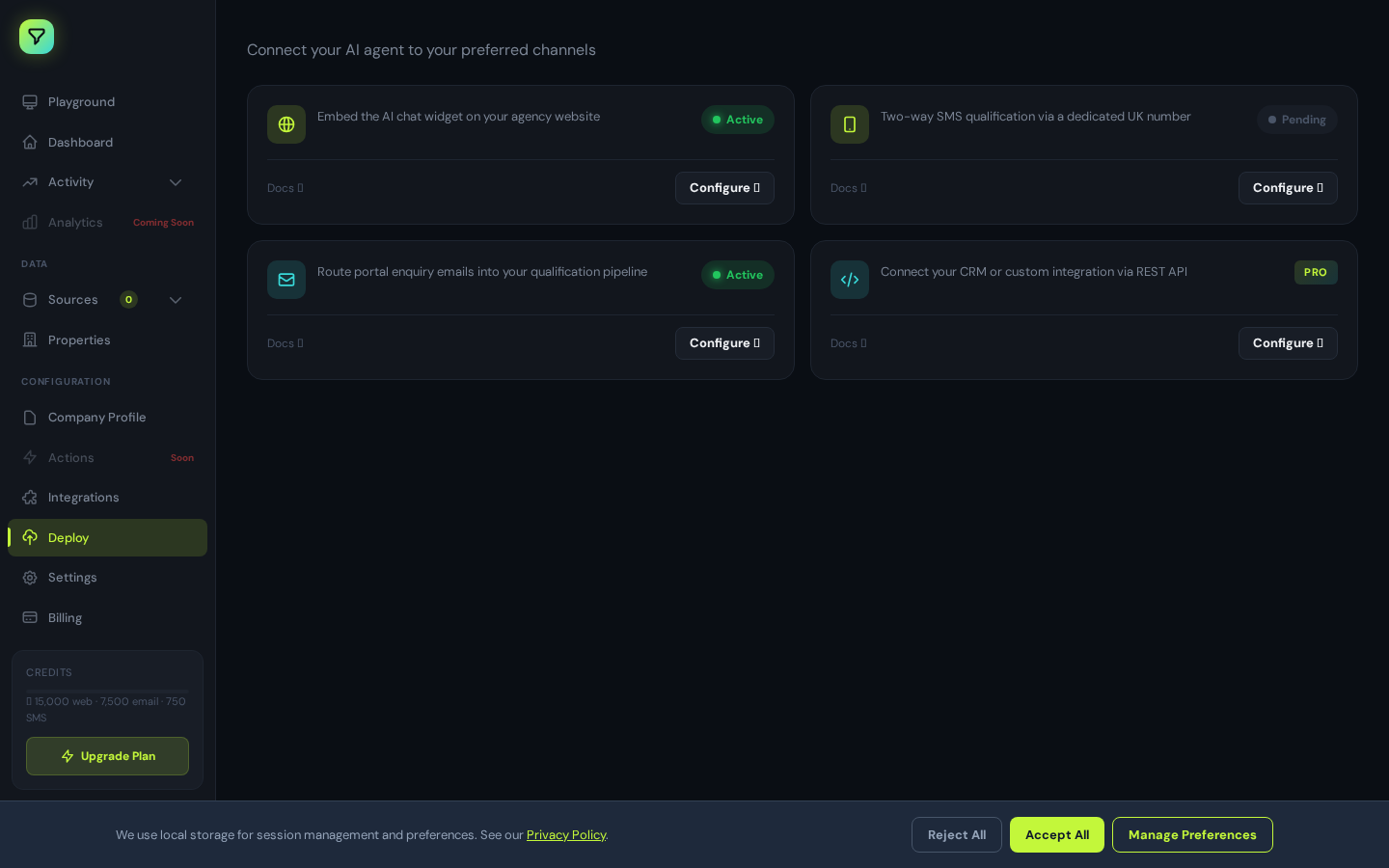
In the dashboard sidebar, click Deploy. Under API Keys, click Create API key, give it a name (e.g. "Zapier"), and copy the key — it is only shown once.
In Zapier, create a new Zap:
- Click Create Zap
- Search for Webhooks by Zapier as the trigger app
- Select Catch Hook as the trigger event
- Click Continue — Zapier generates a webhook URL like
https://hooks.zapier.com/hooks/catch/XXXXXX/YYYYYY/ - Copy the URL — keep this tab open
Note
In the dashboard sidebar, click Integrations. Find the Zapier card.
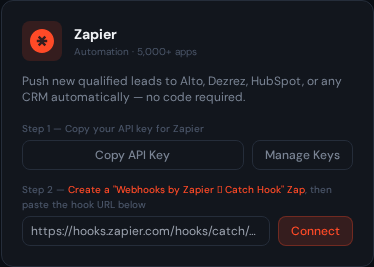
- Step 1 — Copy API key: Click Copy API Key to confirm you have your key. If you haven't created one yet, click Manage Keys to go to Deploy → API Keys.
- Step 2 — Paste your Zapier hook URL into the input field and click Connect.
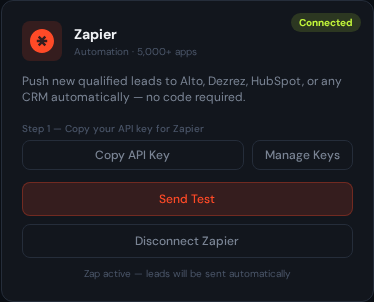
Once connected, a green Connected badge appears and the card switches to the connected view.
Zapier needs to receive one request before it can detect the payload shape. Click Send Test in the Zapier card — Sift will fire a sample lead payload directly to your hook.
Then go back to Zapier and click Test trigger — it will find the request and show all the fields.
With the trigger tested, add your action (e.g. create a contact in HubSpot, add a row in Alto, post to Slack) and map the Sift lead fields to the action fields. Click Publish to turn the Zap on.
From this point, every lead Sift qualifies will be sent to your action automatically.
Lead payload
Every qualified lead fires a POST to your Zapier hook with the following fields:
| Field | Type | Description |
|---|---|---|
lead_id | string | Unique lead identifier |
name | string | Full name |
email | string | Email address |
phone | string | Phone number |
lead_score | number | Qualification score (0–100) |
lead_status | string | qualified |
qualified_at | ISO 8601 | Timestamp of qualification |
intent | string | buy or rent |
budget_min | number | Minimum budget (£) |
budget_max | number | Maximum budget (£) |
preferred_areas | string | Comma-separated areas |
bedrooms_min | number | Minimum bedrooms required |
bedrooms_max | number | Maximum bedrooms required |
chain_status | string | no_chain, has_chain |
mortgage_status | string | mortgage_in_principle, cash_buyer, etc. |
buyer_scheme | string | help_to_buy, shared_ownership, none |
stamp_duty_position | string | SDLT position |
financing_status | string | e.g. aip_confirmed |
timeline | string | 3_months, 6_months, etc. |
gdpr_consent | boolean | Whether GDPR consent was given |
gdpr_consent_at | ISO 8601 | When consent was given |
handoff_summary | string | AI-generated summary for your team |
transcript_url | string | Link to the full conversation |
Disconnect
To remove the Zapier connection, open the Zapier card in Integrations and click Disconnect Zapier. The hook URL is cleared and Sift will stop sending events. You can reconnect at any time with a new hook URL.
Troubleshooting
"No request found" in Zapier — Zapier requires at least one test request before activating. Send a manual POST (see Step 4 above) then click Test trigger again.
Connected badge disappeared after reload — Check that your Zap is still turned on in Zapier. If the Zap is disabled, Zapier may have sent an unsubscribe event.
Leads not arriving — Confirm the Zap is Published (not just saved). Leads only fire when Sift's agent fully qualifies them — partial conversations do not trigger the hook.